


Submit IndexNow URL’s easily by using a simple python script, learn how on this quick guide. IndexNow is a API protocol that lets you instantly notify search engines like Bing and Yandex on updated content posted in your website. Instead of waiting for crawlers to find your pages, you push the links directly in seconds. This guide shows you exactly how to do it using a simple Python script on windows and mac using the IndexNow API.
Table of Contents
What You Need to Submit IndexNow URL’s
I’ll be guiding every step, after reading this easy guide I promise you will easily submit IndexNow URL’s.
- Python: the programming language that runs the script (python.org)
- pip: Python’s package installer (comes bundled with Python)
- requests library: a Python add-on that lets your script send HTTP requests
- Your IndexNow key: generated from your site or Bing Webmaster Tools
- Your key file hosted: a
.txtfile with your key placed at the root of your site (e.g.https://yoursite.com/yourkey.txt) - Command Prompt (Windows) or Terminal (Mac/Linux)
Step 1: Get your IndexNow API Key
Register your website with Bing Webmaster Tools.
Go to https://www.bing.com/indexnow/getstarted and scroll down until you find this:
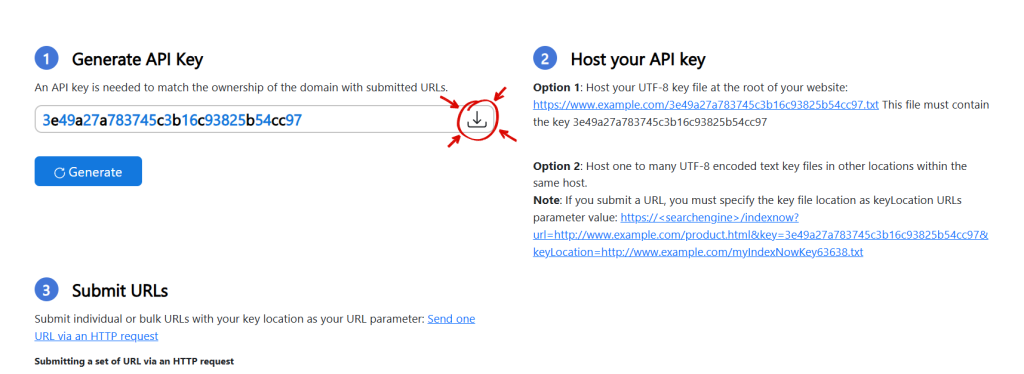
Click on the download button (highlighted on the image). Now you have your IndexNow API key.
Step 2: Host the IndexNow API Key on your site
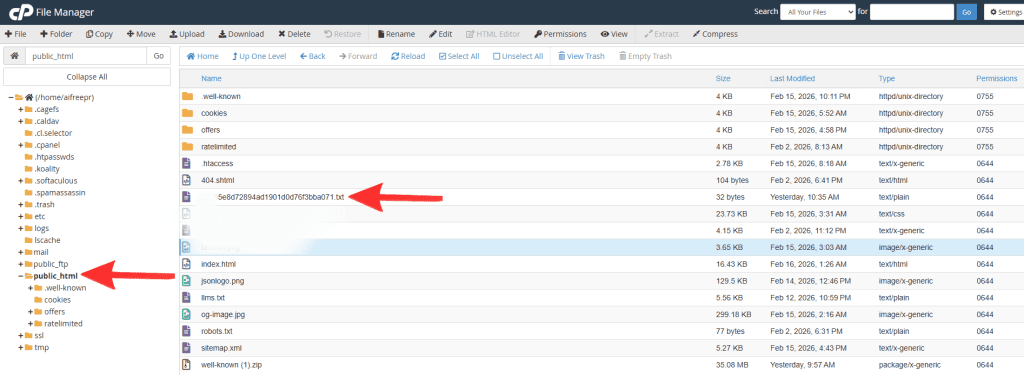
1: Host the IndexNow API key at the root of your website: Simply upload the file you previously downloaded to the root of your website, usually the public_html.
It should look something like this, but with your own API key: https://www.example.com/c5f8e345d47f40d49dafa7269d33b7d7.txt
Step 3: Install Python
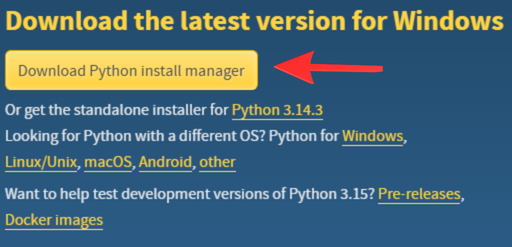
Go to python.org/downloads and download the latest version:
Critical: When asked type “Y” on“Add to PATH” and press Enter. Skipping this step is the most common cause of errors.
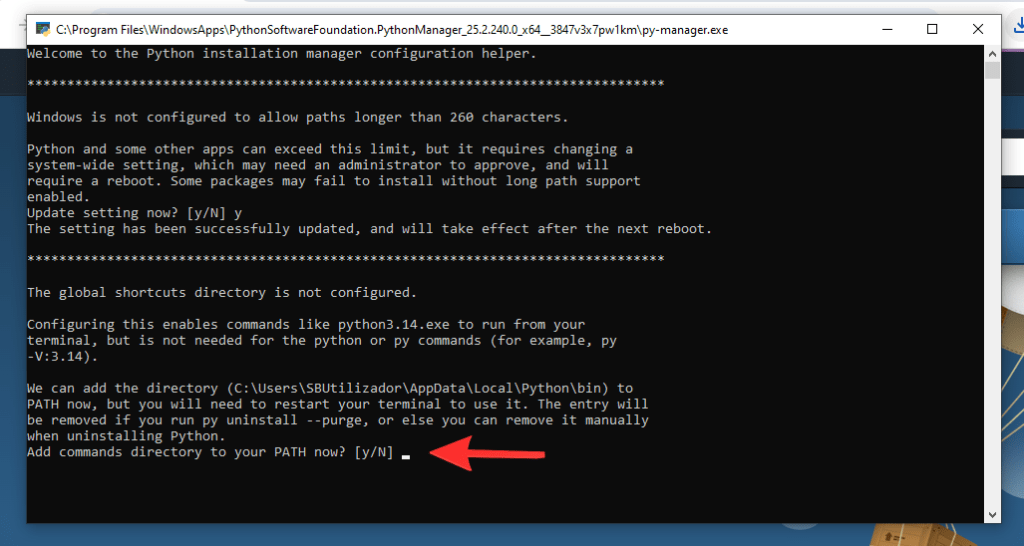
Type Y and press Enter on the other questions (recommended) to finish the installation:
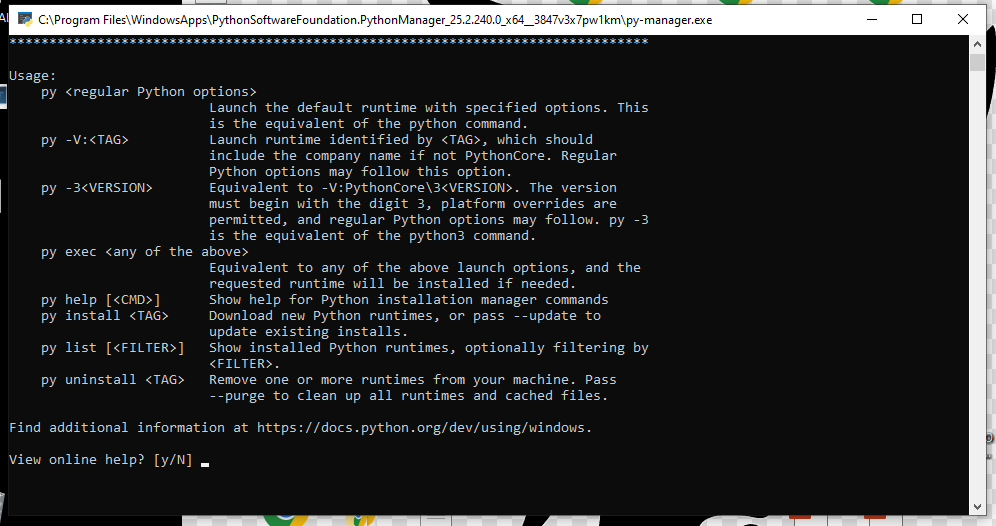
This screen means Python was successfully installed on your computer. You can close the window now.
Step 4: Install the Requests Library
Open Command Prompt on Windows (press Windows + R, type cmd, hit Enter) or Terminal on Mac (press Cmd + Space, type Terminal).
Copy the following and hit Enter:
pip install requestsYou only need to do this once. If pip is not recognized, try:
py -m pip install requestsStep 5: Create the Python Script
Open Notepad (or any text editor) and paste the following code:
import requests
import json

payload = {
    "host": "www.yoursite.com",
    "key": "your-indexnow-key",
    "keyLocation": "https://www.yoursite.com/your-indexnow-key.txt",
    "urlList": [
        "https://www.yoursite.com/page-1/",
        "https://www.yoursite.com/page-2/",
        "https://www.yoursite.com/page-3/"
    ]
}

headers = {
    "Content-Type": "application/json; charset=utf-8"
}

response = requests.post(
    "https://api.indexnow.org/indexnow",
    headers=headers,
    data=json.dumps(payload)
)

print(f"Status Code: {response.status_code}")

if response.status_code == 200:
    print("✅ Success! All URLs submitted to IndexNow.")
elif response.status_code == 202:
    print("⏳ Accepted — key not yet verified.")
elif response.status_code == 403:
    print("❌ Key not found. Check your keyLocation URL.")
elif response.status_code == 422:
    print("❌ Invalid request — check your URLs match the host.")
else:
    print("⚠️ Unexpected response.")
Replace the following with your own details:
www.yoursite.com→ your domainyour-indexnow-key→ your actual key- The
urlList→ the pages you want to submit
Save the file as indexnow.py on your Desktop. In Notepad, set Save as type to All Files before saving:

Important: For this to work, the file must ONLY be saved on the Desktop and it must be called “indexnow.py”.
Step 6: Run the Script to Submit IndexNow URL’s
In Command Prompt or Terminal, run the following commands one at a time:
Windows:
Copy the following and hit Enter:
cd %USERPROFILE%\DesktopThen Copy the following and hit Enter:
python indexnow.pyMac/Linux:
Copy the following and hit Enter:
cd ~/Desktop
python3 indexnow.py
Step 7: Check the IndexNow Result
If everything is set up correctly, you will see:
Status Code: 200
✅ Success! All URLs submitted to IndexNow.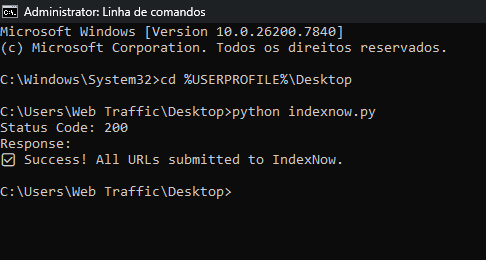
Your URLs are now submitted to api.indexnow.org, which automatically distributes them to all participating search engines including Bing, Yandex, Naver, and Seznam in a single request.
| Code | Meaning |
|---|---|
200 | URLs accepted successfully |
202 | Request received, key pending verification |
400 | Bad request, check your JSON format |
403 | Key file not found at the keyLocation URL |
422 | URLs do not match the declared host |
IndexNow Submission Tips
- You can add up to 10,000 URLs per request.
- Re-run the script anytime you publish or update pages.
- You only need to submit to one endpoint and IndexNow shares URL’s with all partner engines automatically.
Conclusion
Submiting IndexNow URL’s can be tricky even for the most experienced, mostly because of the PATH issue during Python installation. Once that was sorted, the script ran on the first try. If you run into the same problem, just make sure you tick “Add Python to PATH” during setup and you will save yourself a headache.
The whole point of this approach is that you are not waiting around for Bing or Yandex to crawl your site on their own schedule. You submit IndexNow URL’s, get the 200 response, and the job is done. Add new pages to the urlList whenever you publish something and run it again.



